Webflow to WordPress Migration: A Practical Guide
A Webflow site rarely crashes on a Tuesday.


This guide is intended for the person who is responsible for the actual project. This guide covers what actually moves, what has to be rebuilt, where the SEO leaks are, and how to make the call without regretting it eighteen months later. The direction of travel is not obvious in 2026, and much of the loudest advice out there is going the other way. That makes a clear framework more valuable, not less.
Why Teams Move from Webflow to WordPress in 2026
In 2026 the public discussion is running more in the opposite direction. Marketing teams are starting to experience WordPress fatigue, worry about the security of their sites, and deal with plugin sprawl. Because of this, marketing teams are starting to move to Webflow, or Framer, and other page builders. One independent developer publicly walked away from a WordPress-to-Webflow migration proposal in 2026 because the numbers no longer worked, arguing that some Webflow studios are quietly walking away from migration work as their economics shift. This does not mean that people are stopping all migrations. It means, more so, that you should be open about the reasoning behind what you are doing.
Four business reasons show up repeatedly in Webflow-to-WordPress projects:
- The content model outgrew the CMS. Webflow Collections work well until you need nested taxonomies, custom fields per post type, or editorial workflows that involve more than two people.
- Commerce or membership stretched the setup. Bolting Memberstack, Outseta, and a third-party checkout onto a Webflow site multiplies vendors and failure points.
- The team needs cheaper handoff. WordPress editors, developers, and marketers are easier to hire, and the market for maintenance is large.
- Total cost of ownership no longer makes sense. Webflow workspace seats, CMS item limits, and hosting tiers can add up fast at scale.
Scale explains part of the appetite. Down from its 2022 peak, WordPress still held a 33.21% market share in April 2026, dwarfing Webflow’s market presence. That translates to more options for themes and plugins and a larger talent pool. More possibilities also mean more ways to configure something poorly. Our Webflow vs WordPress comparison expands on the differences between WordPress and Webflow’s architecture, costs, and maintenance. For background specifically on Webflow, Webflow’s Wikipedia page has information chronologically describing the service.
If your site is essentially a controlled brochure, consider Webflow. For use cases such as your site becoming a content engine or your site becoming a revenue engine, consider WordPress.
The Export Button Is a Trap
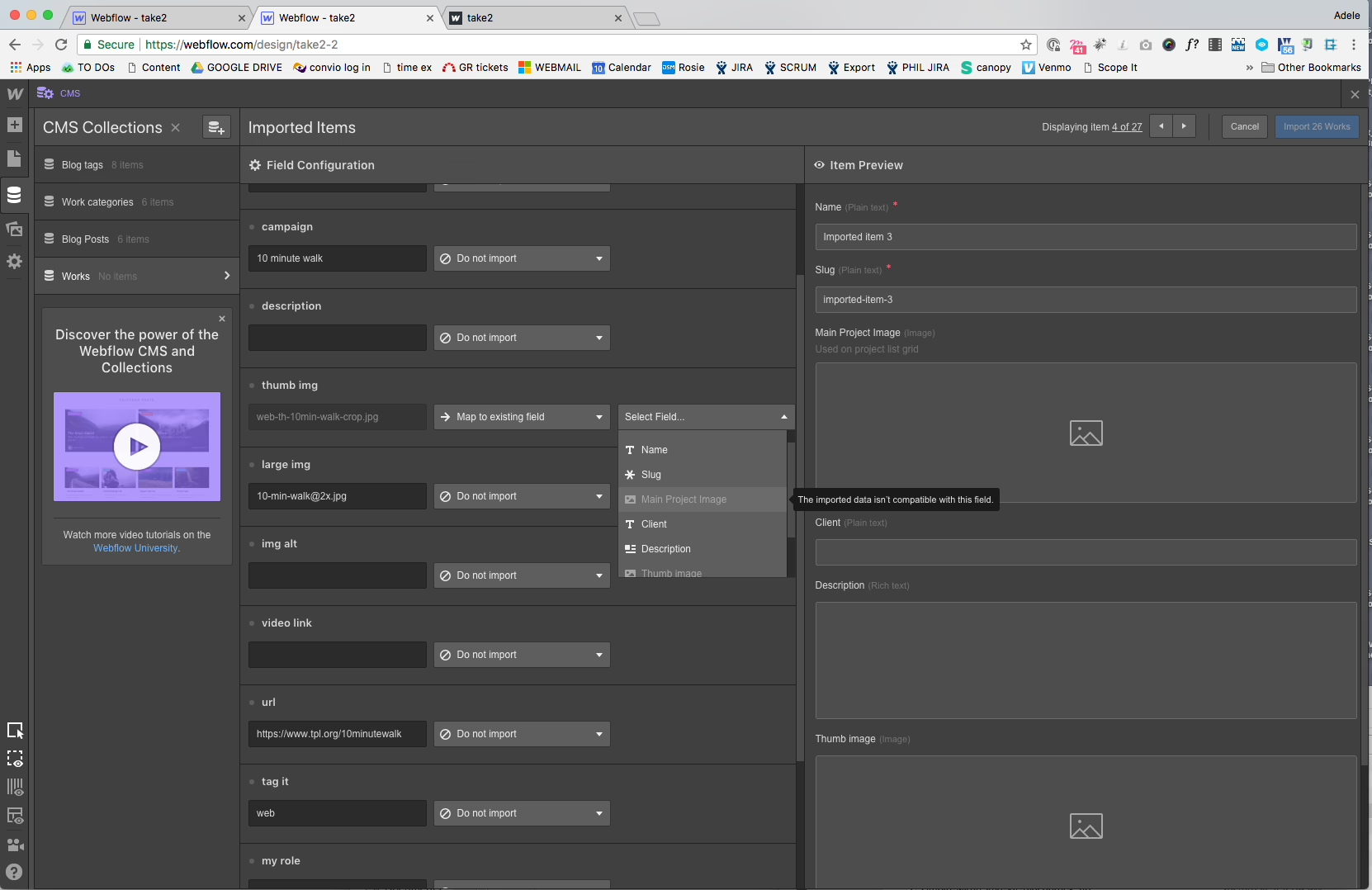
Webflow has an export button. Webflow does not build WordPress sites. Webflow’s code export generates HTML, CSS, and JavaScript code, but all of the code is encapsulated within Webflow’s class names and runtime assumptions. Webflow’s CSV export is a CMS item download without the accompanying images, forms, and embedded content. The most common mistaken belief on every discovery call is that a converter exists, only to find out that the conversion is a complete rebuild.
Common failures among practitioners on Stack Overflow include sliders and lightboxes that stop working once the Webflow runtime is gone, dark-mode toggles that break because they were reading CSS variables scoped to Webflow’s environment, and menus that looked identical in a Figma review but render differently once WordPress owns the navigation structure.
None of these failures are existential. All of them are costly if you assume they will not happen. There is a small open-source ecosystem around Webflow. The most popular Webflow to WordPress helper scripts on GitHub have single digit star counts. A menu bridge plugin was built so the CSS and JS could be exported and control could be retained. This is a clear indication that this problem exists and no one has addressed it at scale. The default should be to prepare for a build and not an import.
Plan the Migration Before You Touch a Theme
A migration that skips planning does not become faster. It becomes a long discussion of the extent of the migration while the old site is still actively generating revenue. Before anyone has WordPress admin access, the team must prepare an inventory of every URL, every CMS collection, every form endpoint, every embed, every integration.
The inventory asks four questions. What exists today in terms of content? What must exist post migration? What should have a different structure? What can be eliminated? Failing to address the last of these questions leads to carrying dead web pages into the new site, which then results in having to redirect pages that have not been visited in years.
An order of operations generally looks as follows:
- Crawl the current site and export the complete URL list. Screaming Frog or Sitebulb both work.
- Map each URL to a WordPress target: page, post, custom post type, archive, or 301 to somewhere else.
- Mark every renamed slug as a redirect. Slug changes are where SEO leaks start.
- Catalog forms and integrations. Note the CRM, the payment tool, the ESP, and the notification rules attached to each.
- Cut dead weight. Retire pages that have no traffic, no links, and no strategic reason to exist.
Reference guides on the subject place the majority of Webflow-to-WordPress work in the range of a few weeks to a few months. This depends primarily on the volume of content and the extent to which interaction logic will need to be rebuilt versus discarded. For example, a relatively simple 30-page marketing site with a clean structure can take three to four weeks. In contrast, for a publisher with 400 posts, custom fields, and a built-in paid membership, we are looking at closer to a full quarter.
When we rebuilt Teton Gravity Research’s publishing platform, migrating about ten thousand articles out of ExpressionEngine was only part of the work. The other part was deciding what the platform should still be doing, because bringing dead features into a new CMS is how a rebuild quickly becomes a repaint.
Hosting, Theme, and Builder Choices
The stack decisions you make in the first week determine the maintenance drag you will face in the following two years. Most teams should opt for Managed WordPress hosting to begin with. Kinsta, WP Engine, and Pressable all offer a service where, for a monthly fee, backups, staging, patching, and PHP upgrades are taken care of for you. Generic VPS or shared hosting will, at first glance, appear less expensive. However, the total cost of ownership is always higher because you can expect your team will have to spend a lot of time on it.
On the front end, the honest tradeoff is between Gutenberg and a page builder like Bricks or Elementor. Gutenberg is the long-term bet. Block themes, theme.json design tokens, and standardization work make it a better base for a site you want to own in the future. Elementor is the short-term bet. It is the most popular option among practitioners when they need to quickly rebuild a Webflow site with heavy design and reusable components. Both are defensible. Neither is free.
A rough match by site type:
| Site type | Host | Theme | Builder |
|---|---|---|---|
| Small marketing site | Managed WordPress | Kadence or GeneratePress block theme | Gutenberg |
| Brand-heavy redesign | Managed WordPress | Lightweight block theme | Gutenberg or Bricks |
| Content-heavy publication | Pressable or WP Engine | Custom block theme | Bricks or Elementor Pro |
| Ecommerce or membership | Managed WooCommerce host | Purpose-built theme | Gutenberg plus WooCommerce blocks |
Every plugin you add is a small future liability. If the site publishes across channels, consider the distribution layer carefully, instead of adding plugins one after the other. A good write-up on automated cross-platform sharing beyond default plugins is a helpful resource for this. The goal is not to install fewer things, but rather to install fewer things you have to update.
Exporting Content Without Losing the Pieces That Matter
The rebuild starts with a clean handoff from Webflow. CMS collections export as CSV, one file per collection. Static pages do not become WordPress pages automatically and need to be moved separately. Guides on the mechanics generally agree on separating CMS, static, and media exports so nothing gets lost in a single blob. The Webflow reference on preparing content for migration is worth reading to get a sense of what you can expect to find in the export.
Keep four folders, not one:
- CSVs for each CMS collection, with the original slug preserved.
- Static page archives for reference during the rebuild, not for import.
- Images and video assets, renamed if the old filenames were auto-generated garbage.
- Custom code embeds, saved as text with a note on which page they lived on.
Submissions from Webflow’s hosted form logs stay on Webflow. Extract them. Interaction logic stays behind too. If a page relies on an animation or scroll effect to communicate a message, someone has to rebuild that behavior in WordPress or decide to go with a simpler version of the page.
Planning a move of your own? Our Migration Blueprint maps the content, redirects, and risks before anything is touched. Get the blueprint.
Rebuilding the Site: Pages, CMS, and Navigation
After exporting, most of the heavy lifting begins. The new website will not try to mirror Webflow pixel by pixel. Instead, the goal will be to have a functioning site that is optimized for search and will act more like WordPress than a Webflow tribute page.
First, build global elements. Headers, footers, and nav bars should go in the theme or builder template and be built once, not separately on each page. Webflow CMS Collections need to be rebuilt as WordPress custom post types with matching taxonomies and single/archive templates. Other tools like Advanced Custom Fields or Meta Box would be appropriate for this. Before editors start page building, blog templates need to be ready and built against the import of posts.
Here are some common Webflow primitives and what they mean:
| Webflow | WordPress equivalent |
|---|---|
| CMS Collection | Custom post type with ACF or Meta Box fields |
| Collection page (list) | Archive template or query loop block |
| Collection item page | Single template |
| Global header/footer | Template part in the block theme |
| Symbol / component | Reusable block or synced pattern |
| Interactions (IX2) | Builder motion tools or a light animation plugin |
| Hosted forms | Gravity Forms, Fluent Forms, or WPForms |
Motion is where founders quietly waste money. Chasing pixel-perfect parity with Webflow IX2 interactions in WordPress can take an entire sprint, and result in a page that is heavier and slower than the original. Launch at roughly 80 percent motion fidelity and fix the details later after the page has reached stability for both traffic and conversions. The structure matters more than the decoration principle also applies here – especially for small teams.
Protecting SEO at Cutover
A migration fails fastest when you think of SEO as a cleanup task following launch. Instead, think in terms of how you would secure a website prior to launch. Pages that have existing traffic or backlinks introduce the most business risk when a lazy redirect map is employed.
The order of operations when dealing with client work:
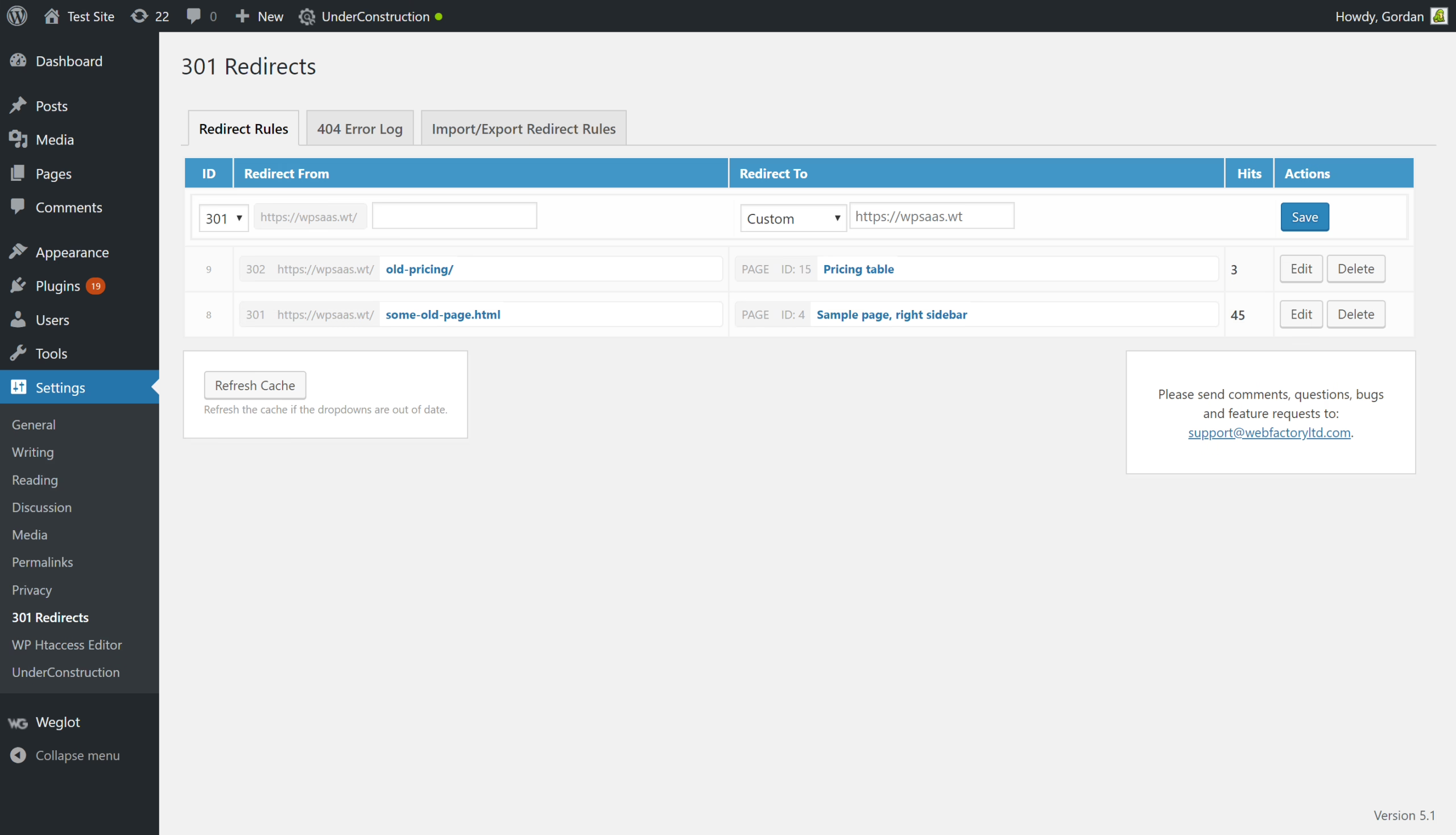
- Redirects. Map every high-value URL to its new equivalent. Test with a redirect checker before DNS changes.
- Metadata. Carry titles, meta descriptions, and Open Graph tags across so social previews do not break.
- Structured data and canonicals. Keep schema and canonical URLs pointed at the correct target.
- Forms. Rebuild each form and confirm CRM routing, hidden fields, and notification rules end-to-end.
- Analytics. Verify GA4, Search Console, and UTM handling before the switch.
Sibley Digital’s breakdown of 301 redirects makes for a good read on the persistent chain of redirects and trailing slashes that leech SEO equity for years after a bad migration. Concrete examples of mistakes are dull and unoriginal. Teams miss dynamic CMS URLs, strip query strings, or forget that Webflow’s trailing-slash behavior does not match WordPress’s. All of this leads to a soft 404 pattern, which Search Console will not flag for a long time.
Our WordPress migration checklist goes into further detail on the QA side, including the issues related to serialized data, webhooks, and email delivery. This should be open during launch week.
Testing, Launch, and What Comes After
The last 10% of a migration determines whether a migration was justified. It is possible to have a migration that looks complete on staging but still leak traffic, break forms, and lose conversions on the live domain. The last audit is boring, structured, and unromantic.
Before DNS flips:
- Staging review. Every page tested on a real subdomain, not on localhost.
- Link integrity check. No internal 404s. External links verified.
- Core Web Vitals baseline. LCP, INP, and CLS on the top templates.
- Form and checkout QA. One real submission through each form, one real transaction through checkout if applicable.
- Schema and Open Graph. Validate on the URLs that generate the most link previews.
- Rollback plan. The old Webflow site stays live and unchanged until the new one is stable.
After launch, protection lasts for a minimum of four weeks. Doing weekly checks on Search Console coverage, redirect chain checks, and logs of form submissions will capture errors that only surface when real traffic hits the site. One large media company reported a 24% average page load time improvement and a 50% faster server response time post migration to WordPress VIP. To keep that improvement, the maintenance cadence must be consistent.
The migrations that remain clean share one thing in common: treating build, strategy, and maintenance as the same system rather than three separate systems. When we migrated St. Louis Magazine off its legacy CMS with about thirty thousand articles, the migration was only the visible part. The invisible part was the two years of the editorial workflow that remained seamless during the platform migration.
Three things should be done this week while planning your move. Inventory every URL and map them to the corresponding WordPress target. Pick the hosting and builder stack based on the site type, not the style. Create a redirect plan before anyone builds a single template. If you’re looking for a full-stack partner for website migration and WordPress development, then those are the sort of projects we take on at Refact with teams that want clarity before coding.
Migrating off a legacy CMS? Let’s talk. Free 30-minute call, no pitch.

Masoud Golchin is a backend developer at Refact, working on server-side systems, internal tooling, and infrastructure. He builds and maintains the services that support both client projects and the team’s day-to-day development workflow. His work includes backend logic, developer tools, system reliability, and the technical foundations that allow products to scale and operate consistently. At Refact, Masoud focuses on creating practical engineering solutions that help the team move faster while keeping systems organized, maintainable, and dependable.
More from Masoud Golchin

