
Your WordPress site can look amazing and still push customers away.
If your theme is hard to use with a keyboard, screen reader, or low vision settings, some people will not even reach your product page, let alone your checkout. That is what WordPress theme accessibility is really about, making sure people can buy from you without fighting your UI.
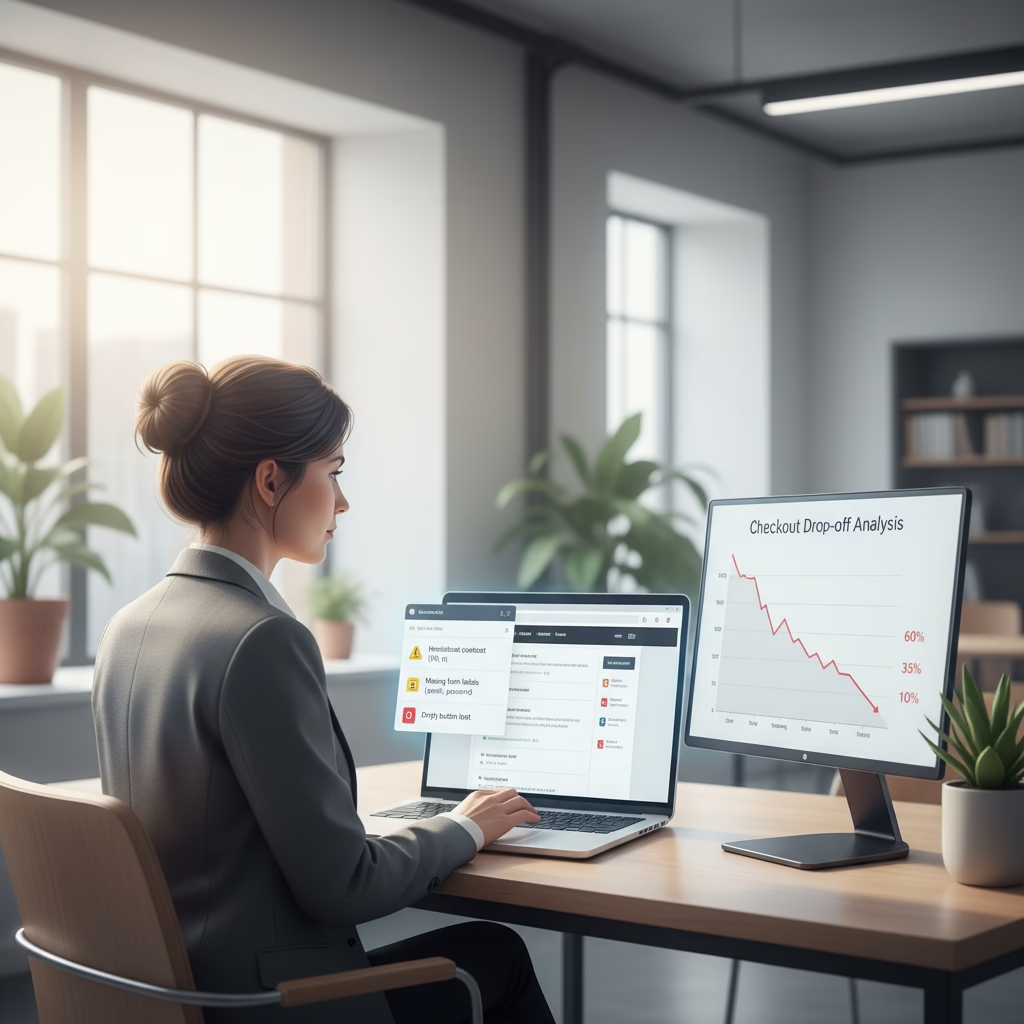
I once worked with an e-commerce founder who could not explain a huge drop-off at checkout. Pricing was solid. Product was strong. The problem was their “premium” theme. It was nearly impossible to use without a mouse, and screen readers could not make sense of the menu and form fields.
They did not have a marketing problem. They had an access problem.
The Real Cost of an Inaccessible Theme
Accessibility can sound like a technical detail. For founders, it is revenue and reputation.
There are more than 1 billion people worldwide with disabilities. If your site blocks them, you are turning away a real market with real buying power.
In practice, the impact shows up fast. Many users will leave the moment a page feels “stuck.” That is especially painful for e-commerce, memberships, and lead gen sites where one broken form can stop the whole funnel.
If you are not sure where the friction is coming from, start with a proper website audit for founders. Theme issues often look like “bad conversion,” but the root cause is usually usability.
The mistake I see most often is treating accessibility as a “later” task. In reality, it is part of product quality. If people cannot use your site, they cannot pay you.
Beyond Code and Compliance
Accessibility is not only about avoiding legal risk. It is about building a site that is easier for everyone to use.
Many accessibility improvements also help with UX basics like clarity, speed, and content structure.
- Clear navigation: Can someone tab through links and buttons in a sensible order?
- Readable content: Is the font easy to read, and do images have useful text descriptions?
- Inclusive media: Do videos have captions and transcripts so people can follow along without audio?
If you want more ideas tied directly to sales, see our guide on how to improve your ecommerce conversion rate.
Next, let’s cover how to spot theme problems before you install anything.
How to Spot an Inaccessible Theme Before It Costs You
Theme demos are designed to impress. They are not designed to reveal edge cases.
A good-looking demo can still hide broken keyboard controls, confusing menus, and forms that fail the moment a user needs assistive tech.
Below is a simple, no-code check you can run on any theme demo. It catches the issues that cause the biggest drop-offs.
This is what happens when a customer hits a wall.

The Keyboard Navigation Test
This is the highest value test you can do in two minutes.
Open the theme demo. Put your mouse away. Use only your keyboard.
Use Tab to move forward through interactive items. Use Shift+Tab to go back. Then check:
- Is the focus visible? You should see a clear outline on every focused link, button, and field.
- Is the order logical? Focus should move from header to main content to footer, not jump around randomly.
- Can you complete actions? Dropdown menus should open, modals should close, and buttons should work with Enter and Space.
If you get trapped, lost, or unsure where you are, that theme will frustrate real users fast.
Check the Color Contrast
Low contrast makes text hard to read for people with low vision and many forms of color blindness. It also hurts readability on phones in bright light.
Do not guess. Use a free scanner.
Browser extensions like WAVE or Axe DevTools can flag contrast failures right on the page. Pay special attention to body text, button labels, link text, and error messages.
A theme should not make you choose between “beautiful” and “readable.” If the default palette fails contrast checks, accessibility was not a priority during design.
The “Accessibility Ready” Tag Problem
You may see an “Accessibility Ready” tag in the WordPress theme directory. It is a helpful filter, but it is not a guarantee.
Some themes meet basic rules and still feel confusing in real use. Keyboard support might technically exist but behave in a way that wastes time and causes mistakes.
Use the tag to narrow your list. Then verify with your own keyboard test and a contrast scan.
Essential Fixes That Make a Real Difference
If your audit found issues, that is normal. Most sites have a few. The key is fixing the problems that block core actions like reading, signing up, and paying.
Many common theme problems are fixable with small changes that add up to a much better experience.
If you want help prioritizing and implementing changes tied to business metrics, our website optimization services focus on practical fixes that reduce friction.
Build a Clear Content Structure
Start with semantic HTML. That means using headings as headings, not just big text.
In WordPress, use the built-in Heading block and choose the right level (H2, H3). This gives screen readers a real outline of the page.
- Wrong: A paragraph styled to look like a heading. Assistive tech reads it like normal text.
- Right: A proper heading level. Screen readers can jump section to section.
This is one of the fastest ways to turn a “wall of text” into content people can scan and understand.
Add Skip Links and Clear Page Regions
Without a “skip to content” link, keyboard users have to tab through your full header menu on every page. That gets old fast.
A skip link is usually hidden until someone presses Tab. Then it appears and lets them jump right to the main content.
Also, make sure your theme uses clear page regions like header, navigation, main, and footer. These regions help screen reader users move around a page without listening to everything from top to bottom.
If your theme fights you on these fundamentals, it may be time for deeper work. That is where WordPress development help can be the difference between patching symptoms and fixing the base.
Make Forms Usable for Everyone
Forms are where revenue happens. If your contact form or checkout is confusing, people leave.
The most common form issue we see is missing labels.
Some designs replace labels with placeholder text. That looks “clean,” but it fails in real use. Once someone types, the placeholder disappears, and the user loses context.
Placeholder-only forms are one of the fastest ways to lose conversions. They create errors for everyone, and they can be impossible for users with cognitive or memory challenges.
Every field needs a visible label that is correctly connected to the input. Errors also need real text, not only a red border.
| Before the Fix | After the Fix |
|---|---|
| Placeholder text like “Enter your email” vanished when typing started. | A visible label like Email Address stayed in place. |
| Errors showed only as a red outline. | Errors included text like “Please enter a valid email address.” |
| Cart abandonment at this step was 75%. | Abandonment dropped by nearly 40% after the redesign. |
To get more control over theme behavior without rewriting everything, see our guide to the WordPress Customizer API.
How to Test Accessibility (Without Guessing)
After you make fixes, test again. Do not rely on “it seems fine.”
Accessibility testing is a mix of automated checks and hands-on review. You need both.
Start With Automated Scans
Automated tools are great for quick wins. They can catch missing labels, missing alt text, and contrast failures in seconds.
Two common tools:
- WAVE by WebAIM: Adds visual markers on the page to flag likely issues.
- Axe DevTools: Lists issues with details and suggestions inside dev tools.
Automated tools are not enough on their own. They often catch only a portion of real issues. For example, they can tell you an image has alt text, but not if the alt text is useful.
Manual Testing Shows the Real Experience
Manual checks are where you find the problems that actually stop users.
Try using your site for five minutes with no mouse. Then try the same flow with a screen reader.
On Mac, VoiceOver is built in (Command + F5). On Windows, NVDA is free and widely used.
Test your key pages:
- Homepage and primary navigation
- Product or service pages
- Signup, checkout, and payment steps
- Any popups, drawers, or modal windows
A scan can look “clean,” but if a user cannot complete checkout with a keyboard, your site still fails. Usability is the real standard.
Comparing Accessibility Testing Methods
| Testing Method | Pros | Cons | Best For |
|---|---|---|---|
| Automated scanning | Fast, simple, catches common code issues. | Misses context, can produce false positives and negatives. | First-pass audits and recurring checks. |
| Manual testing | Shows real usability and real friction. | Takes more time and practice. | Validating key flows like signup and checkout. |
Build Accessibility Into How You Ship
Fixing your theme once is good. Keeping it accessible as you add pages, plugins, and new layouts is the real challenge.
Teams usually lose ground when they treat accessibility like a one-time project.
Publish an Accessibility Statement
Make your commitment clear with an accessibility statement page.
Keep it honest. Share what you aim for (many teams target WCAG 2.1 AA), what you are doing, and how users can report issues.
An accessibility statement is a public promise. It tells users you want their feedback, and you will take problems seriously.
Add Checks to Your QA Process
Make a short checklist your team uses before publishing.
- Keyboard test: Can you reach and use everything with Tab and Enter?
- Quick scan: Run WAVE or Axe on key templates and new pages.
- Plugin review: Test new plugins on staging before shipping them to production.
If your business has outgrown what a theme can reasonably support, consider moving to bespoke WordPress web design so your layouts and components match your real user flows.
Train More Than Your Developers
Accessibility is also a content and marketing habit.
Your team needs to know basics like proper headings, meaningful link text, alt text, and readable layouts. Otherwise, a good theme can still end up with inaccessible pages.
Your Next Steps for Tomorrow
You do not need a huge budget to make progress. You need consistency.
- Action 1: Draft an accessibility statement and link it in your footer.
- Action 2: Add two checks to every launch: keyboard-only test and a quick WAVE scan.
- Action 3: Share these basics with marketing and support so issues get flagged early.
Common Questions Founders Ask About Accessibility
Can I Use an Accessibility Plugin or Overlay to Fix Everything?
This question comes up a lot because overlays sound easy.
In reality, they often fail to fix underlying theme and markup problems. Some also create confusing experiences for assistive tech users because they “guess” at what the page means.
If the foundation is broken, a layer on top will not make it usable. Fix the theme and templates first.
How Much Does It Cost to Make a WordPress Theme Accessible?
It depends on timing.
If you choose a theme with strong accessibility support up front, costs stay low. If you remediate a complex site later, costs rise fast, especially with custom checkout flows, memberships, or heavy plugin stacks.
Spending a bit more time on theme selection and early testing is often the highest ROI move.
Is Accessibility Only for Screen Reader Users?
No. Screen reader support matters, but accessibility helps many other people too.
- Temporary injury: A broken arm can mean keyboard-only use.
- Older users: Many need larger text and stronger contrast.
- Cognitive differences: Clear labels and predictable layouts reduce errors.
- Mobile users: Good contrast and touch-friendly controls help everyone.
When you build for these cases, your site becomes easier for all customers. That usually means fewer drop-offs and more completed checkouts.
At Refact, we help founders fix the theme issues that block customers, then keep those wins in place as the site grows. If you want an accessibility-first plan tied to conversion goals, let’s talk.